

Download the Plugin Zip File #
After completing your order, check your email inbox for a message titled “Your order of 3DS 2 – First Atlantic Commerce Hosted Payment Page Gateway for WooCommerce by GDC is completed“.
Open the email and locate the “Download” button.
Click the button to download the plugin zip file to your computer.
Log in to Your WordPress Admin Dashboard #
Open a web browser and navigate to the admin dashboard of your WordPress website.
Enter your login credentials to access the dashboard.
Upload the Plugin #
Once logged in, go to the “Plugins” section on the left-hand side menu.
Click on “Add New” under the Plugins sub-menu.
Choose the “Upload Plugin” option at the top of the page.
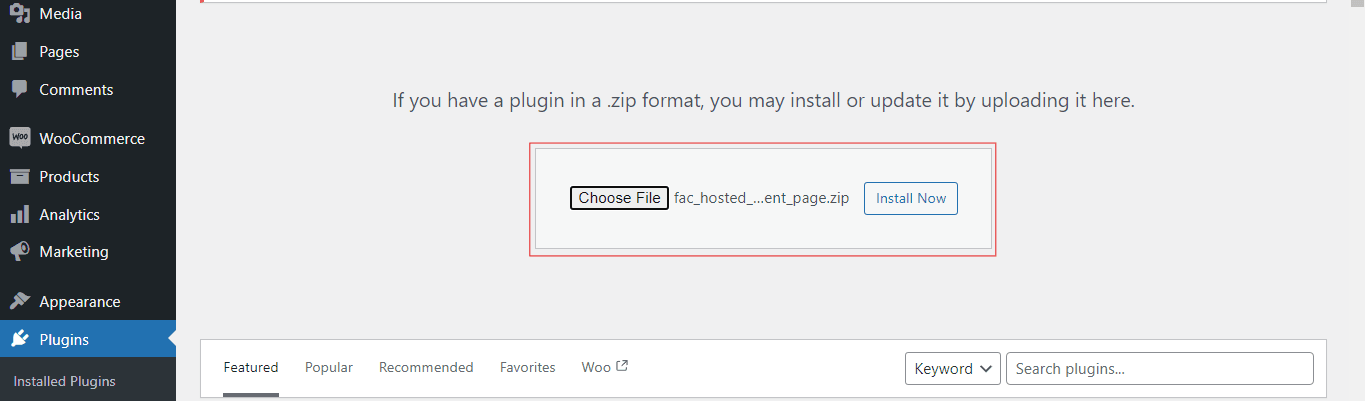
Click on the “Choose File” button and select the plugin zip file you downloaded earlier.
After selecting the file, click on the “Install Now” button to upload the plugin to your WordPress site.
Install and Activate the Plugin #
After the upload is complete, click on the “Activate Plugin” link to activate the plugin on your website.
Activate Your Subscription: Once the plugin is activated, navigate to the “Settings” menu in your WordPress admin dashboard. Select the “FAC Payment Gateway Activation” option from the dropdown menu.
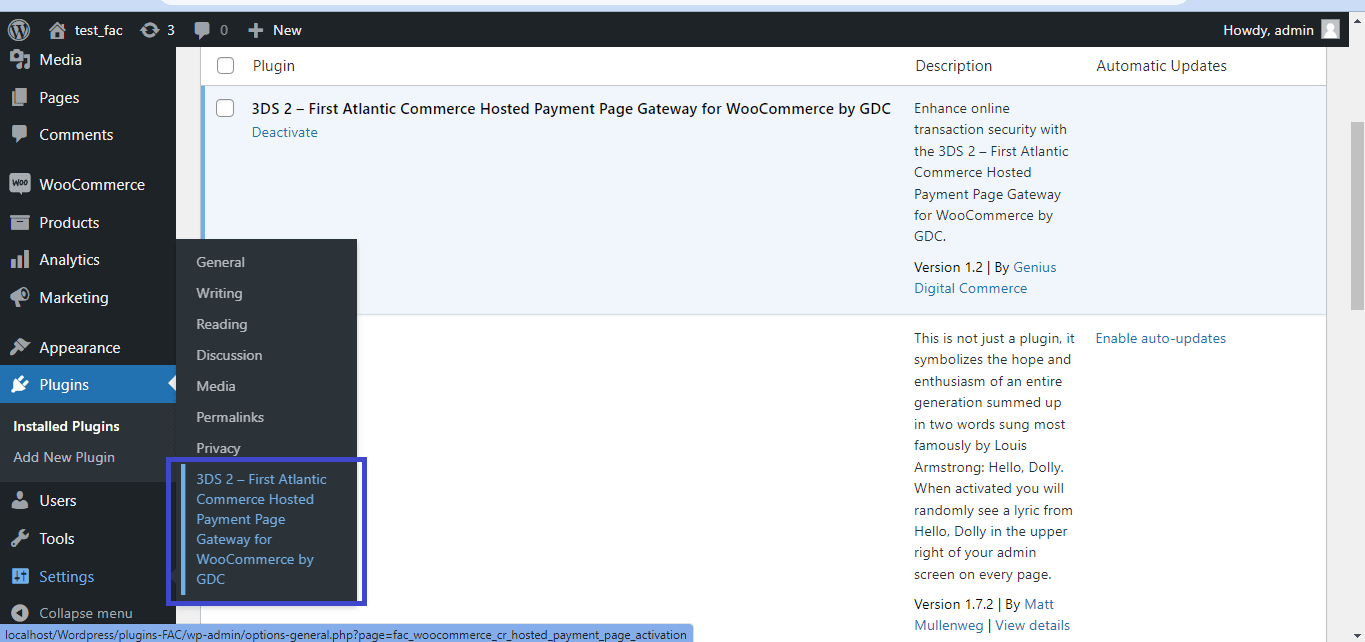
You will be prompted to enter the activation code that was sent to you via email.
the activation code from the email received to activate your subscription in order to begin using the plugin.

Note: If you already have these two plugins, disable them or you can even remove them before installing the Hosted Payment Page Gateway plugin as this is enough.


