

Now we can go to our WHMCS site to set up the payment gateway. Follow these steps to configure it:
Navigating to Payment Gateway Settings #
1. Log in to WHMCS: Use your administrator credentials to log in to your WHMCS dashboard.
2. Go to Settings: In the main menu, navigate to the “Settings” section.
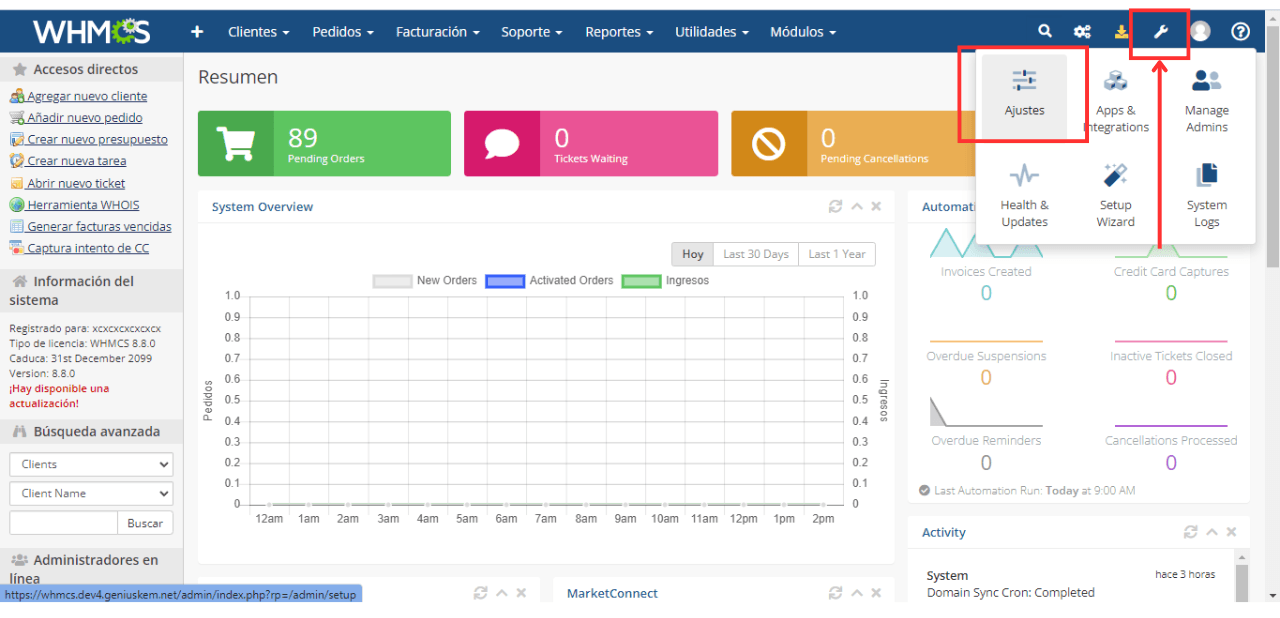
3. Access Payment Gateways: Look for the “Payment Gateways” option. You will be prompted to re-enter your password for security purposes.
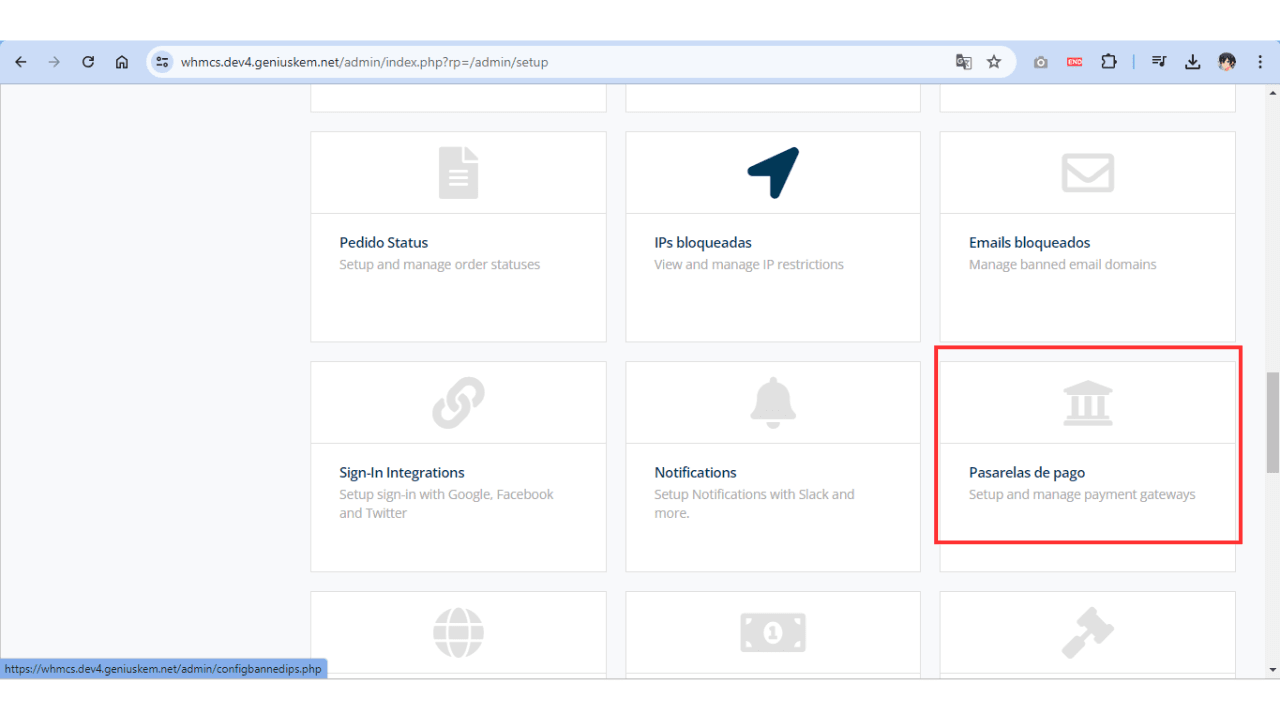
Note: It will ask you for the password again for security.
Activating the FAC Atlantic Remote Gateway #
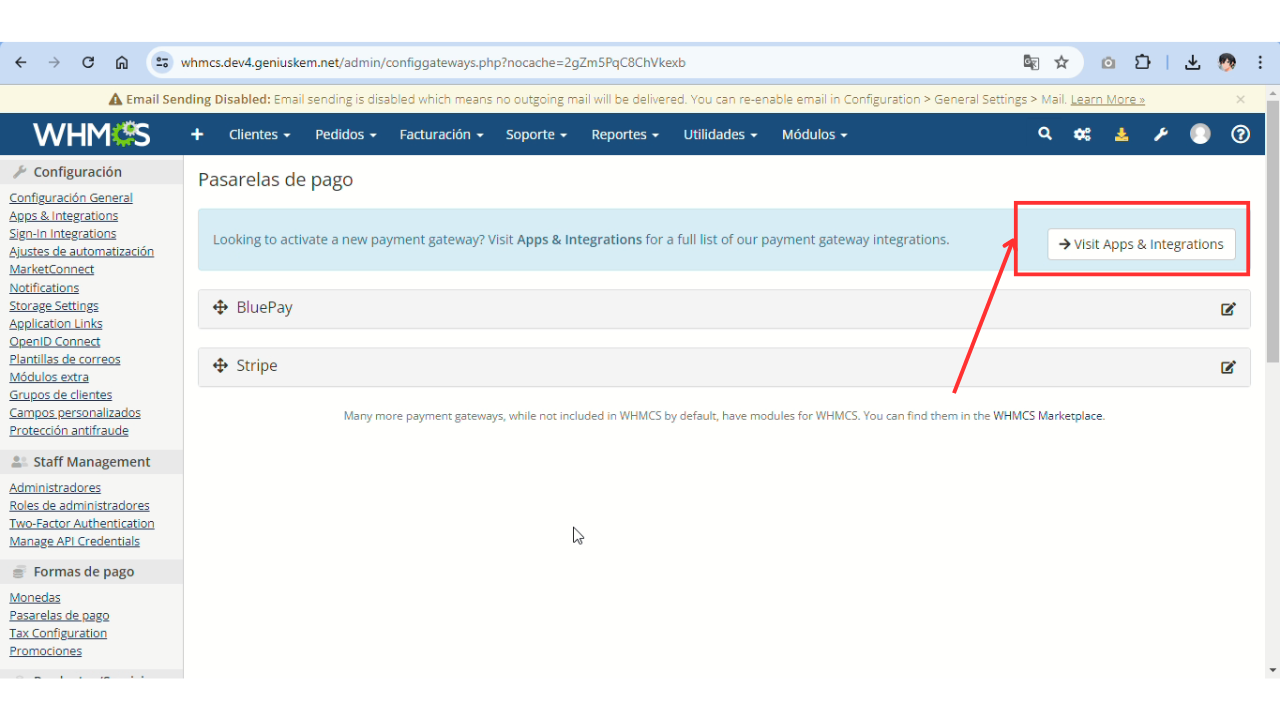
1. In the “Payment Gateways” section, find and click on “Visit Apps & Integrations.” and then use the search bar to find the “FAC Atlantic Remote” payment gateway.
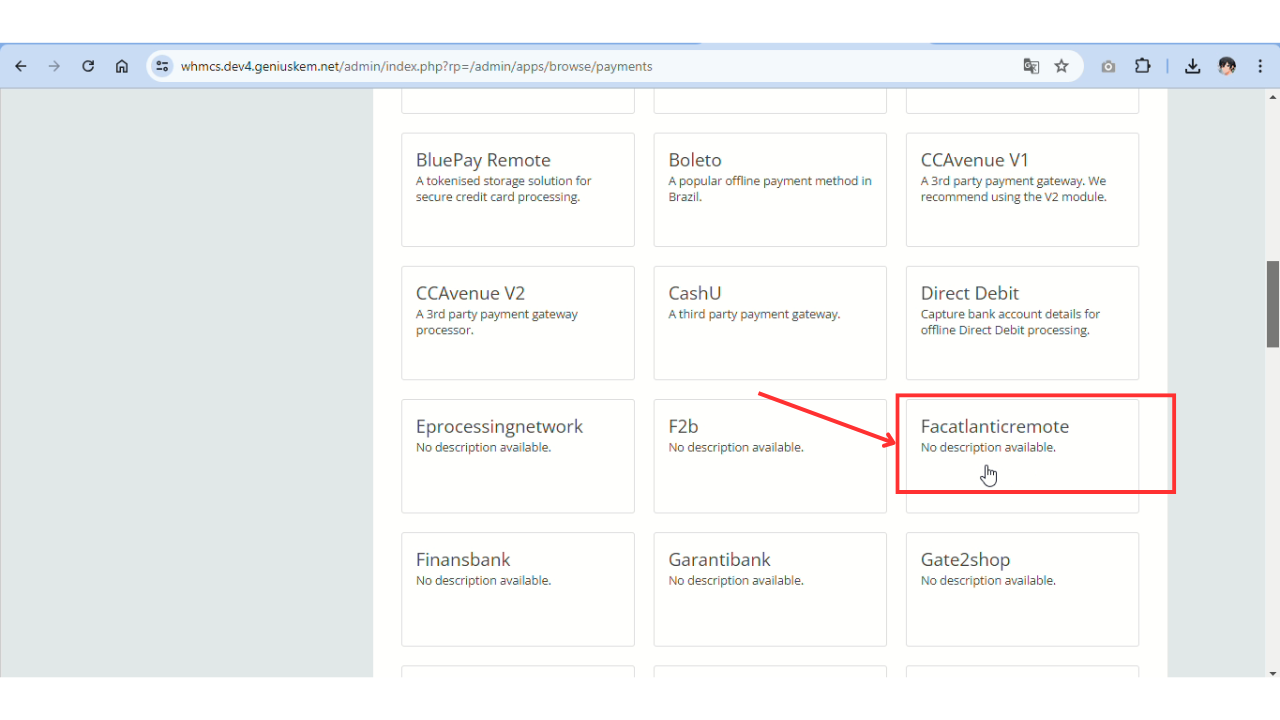
2. Once you locate it, select the gateway and click on “Activate.”


Configuring the Gateway with FAC Credentials #
1. Obtain Credentials from FAC Portal: Log in to your First Atlantic Commerce (FAC) portal and navigate to “FAC Settings.”

2. Copy and Paste Credentials:
- Secret Key: Copy the secret key from the FAC portal and paste it into the corresponding field in WHMCS.
- Account ID: Copy the account ID from the FAC portal and paste it into the corresponding field in WHMCS.
- API Domain: Copy the API domain from the FAC portal and paste it into the corresponding field in WHMCS.
3. Enable Tokenization: Check the option to enable tokenization.

Once all the credentials are entered and tokenization is enabled, click on “Save Changes.”
Your FAC Atlantic Remote payment gateway should now be configured and ready to use. You can test the configuration by attempting a transaction to ensure everything is working correctly.


